
Overview
There are times when you may need to use a font that is not already available in Tenon. For example, you may need to follow strict branding guidelines in your company. Or perhaps you are working with a client that uses a specific font for their communication. Maybe you just want to experiment with new font styles!
Tenon allows you to add custom fonts to your Tenon account. You can use them when designing both emails and pages. Note that you can only leverage fonts that are available through the web, called Web fonts.
Let's dive in.
Email Client Support
Unfortunately, not all email clients support Web fonts. In general, web fonts work in:
- iOS Mail
- Apple Mail
- Android (default mail client, not Gmail app)
- Outlook 2000
- Outlook.com app
- Thunderbird
Campaign Monitor has an in-depth guide to using Web fonts in email if you want to learn more about this topic. Litmus has a detailed guide as well.
As you can see from the list above, there are a couple of very popular email clients missing from the list. Specifically...
Gmail limitation
Gmail does not support Web fonts, including Google fonts (strange, indeed!). However, Gmail supports a small selection of web fonts (Google Sans and Roboto).
Outlook limitation
Please note that Outlook 2007/2010/2013/2016 is not compatible with any custom or web fonts. It only supports traditional web-safe fonts. Sometimes other fonts may display if they are physically installed on the computer. Use the font stack to define which font the design should fall back to (see below).
Adding a Custom Font
Log into your Tenon account and navigate to Settings > Styles. Scroll down until you see the Fonts section. You can add a custom font by clicking the button that displays with a + icon.
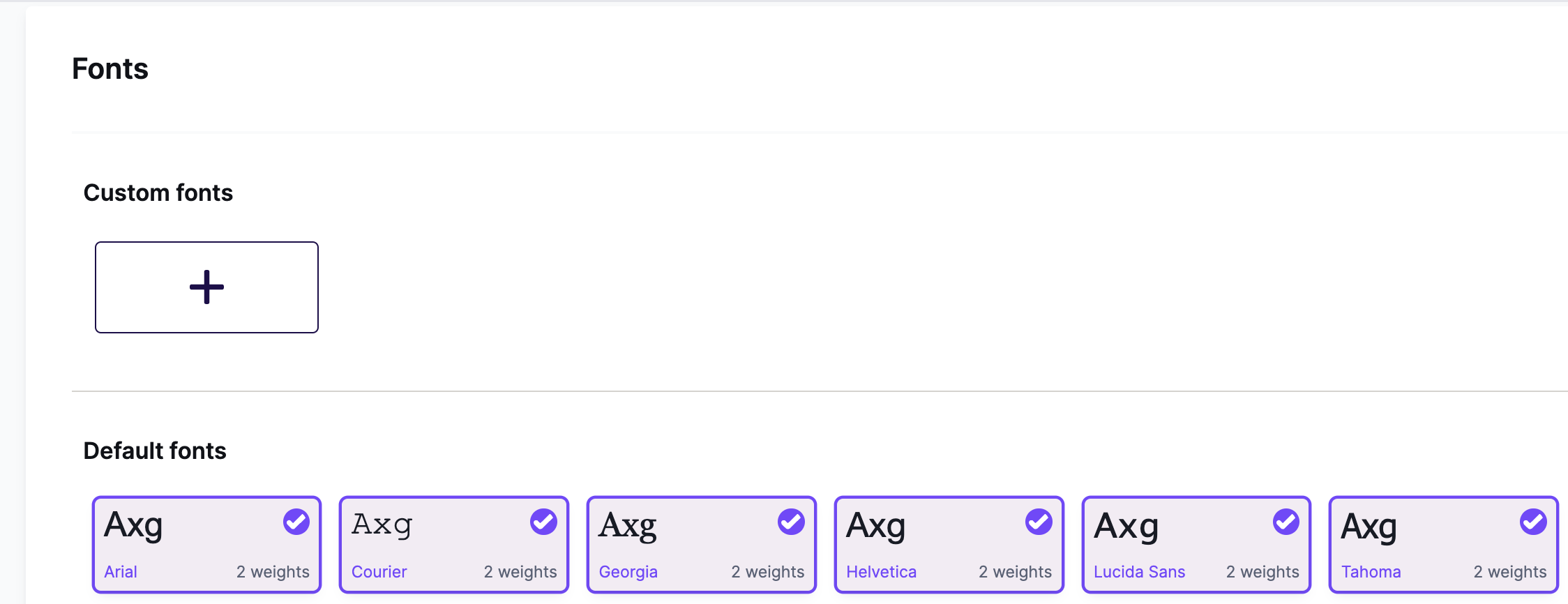
A form will open.
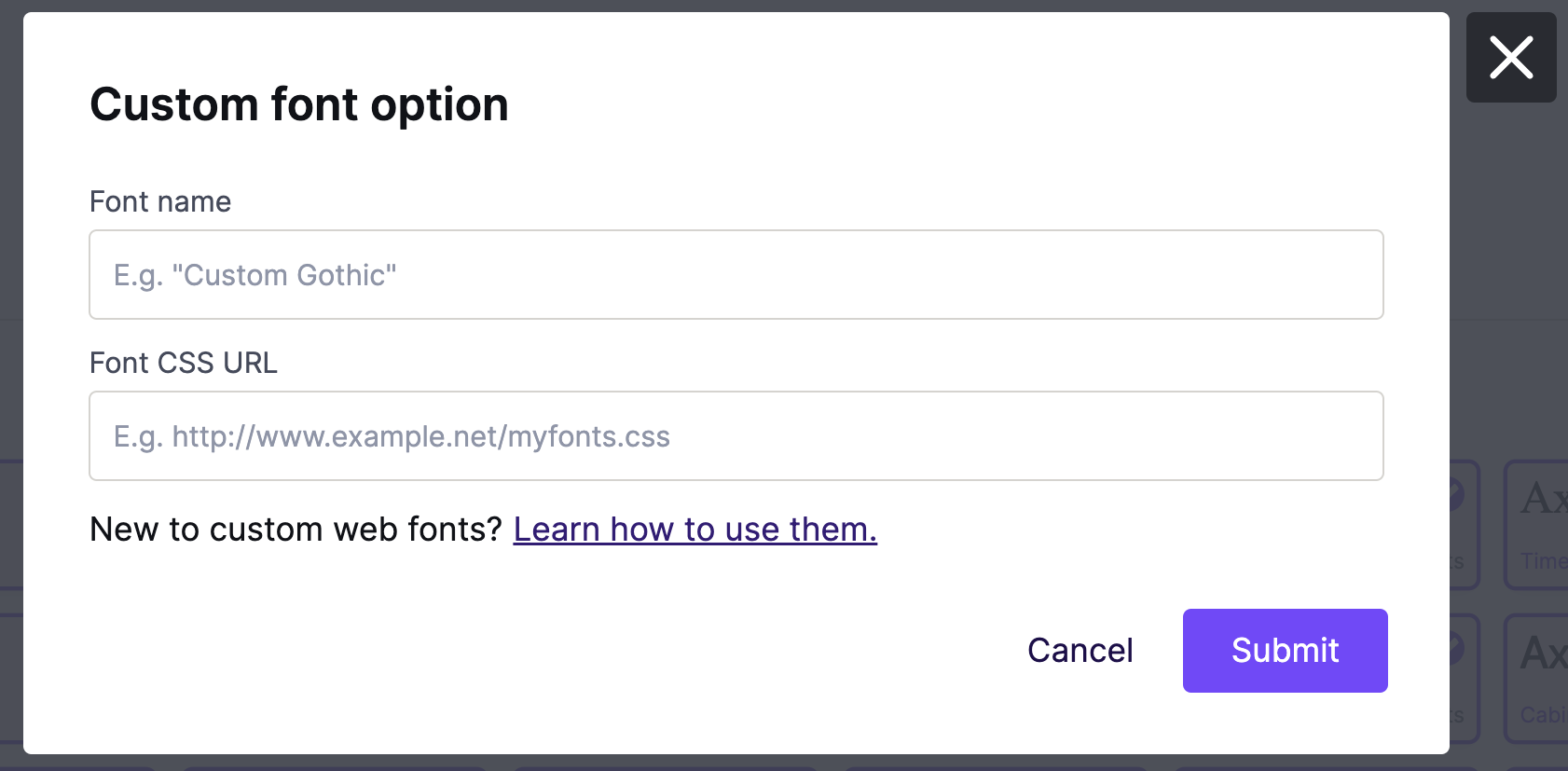
Form Inputs
Font Name
This is the font name that will be displayed in the builder. It usually matches the font name, but you can customize this in any way you would like.
Font CSS URL
The address of the CSS document used to embed the font files and the CSS rules that apply them. For example, this is a Montserrat stylesheet generated by Google Fonts: https://fonts.googleapis.com/css?family=Montserrat.
This URL must be delivered on the HTTPS protocol, with a valid SSL certificate. Also, Policy CORS must be enabled in the host to deliver the font files.
It's a best practice to use a dedicated CSS sheet. If the CSS contains additional styles, the host application is likely to inherit them. This can cause problems in the Tenon user interface.
Google Fonts already provides web fonts that work in the builder and most email clients. See below for more about how to easily use Google fonts with Tenon.
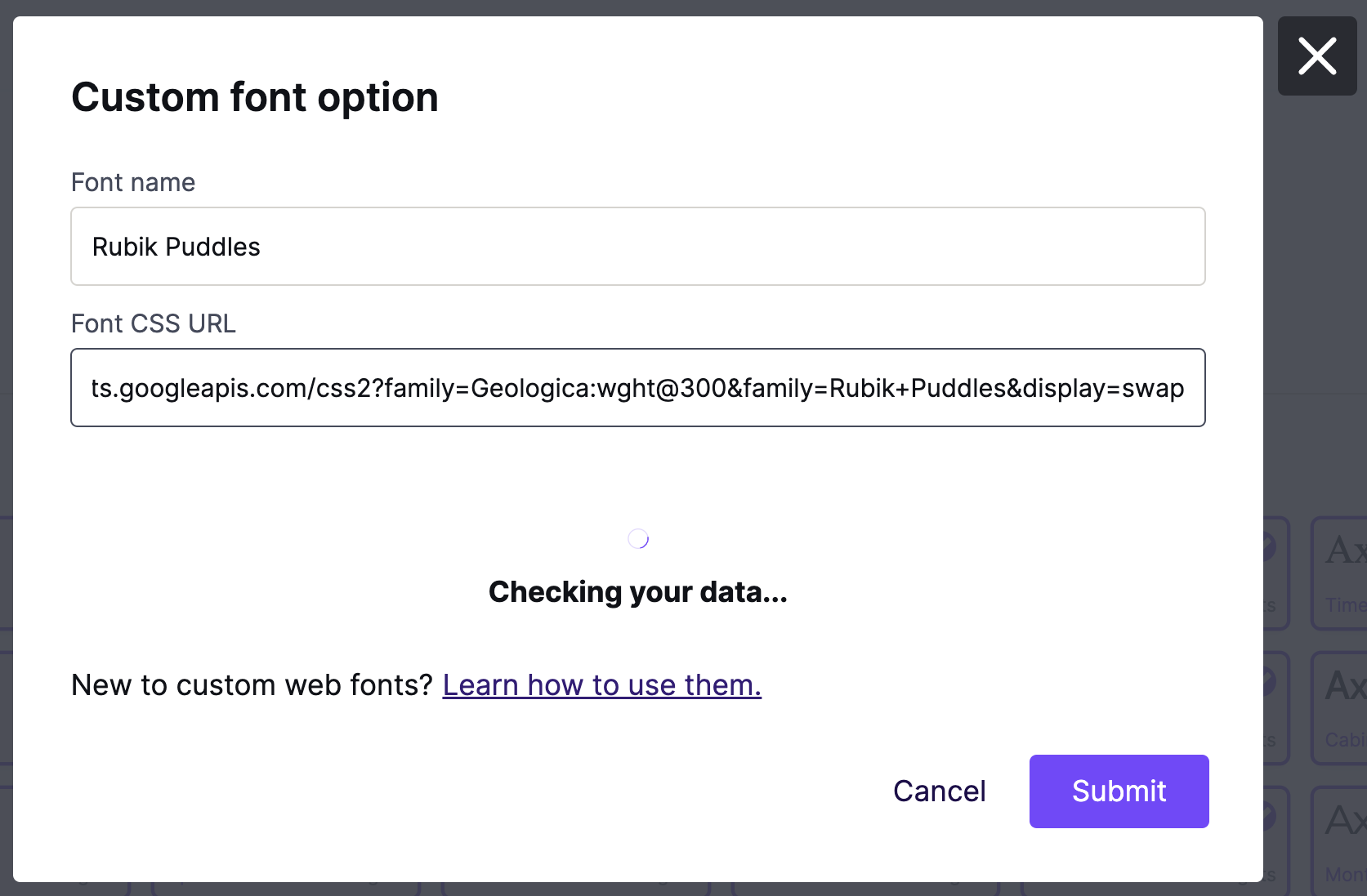
Once you insert your CSS URL, we perform some checks to make sure it's a valid stylesheet. You'll see a message that says Checking your data... while we do this. If the stylesheet is valid, some new fields will populate.
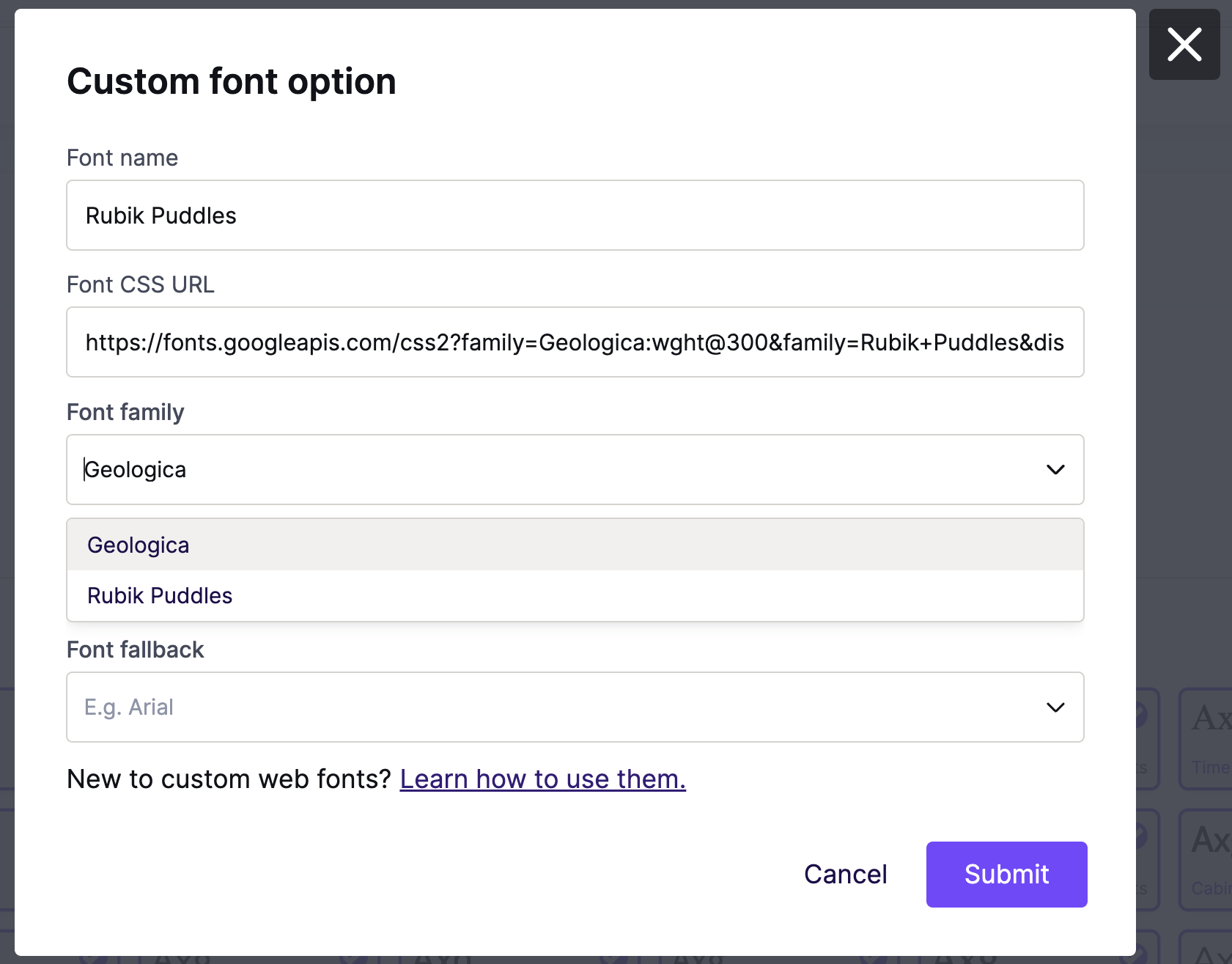
Font Family
This section only populates if you input a CSS URL referring to more than one font. You must use the dropdown to select which font you want to import. By default, we'll select the first font listed in the stylesheet.
Font Weights Found
Here we list all of the font weights we found on your stylesheet. Anything listed here will be available for you to use in the builder. You can't interact with the list. If you want to remove any styles, you need to modify your stylesheet.

Font Stack
This is the font-family stack (CSS syntax) that will be applied to the text paragraphs. Use the dropdown menu to select a font stack from fonts already available in Tenon. The options available are based on the default and web fonts enabled for the workspace.
We recommend building a font stack with some fall-back choices. Remember that Gmail and other email clients will not display web fonts. It's important to add a web-safe font, such as Arial for sans-serif fonts or Times New Roman for serif fonts.
Example:
Font name: Lobster
CSS URL: https://fonts.googleapis.com/css?family=Lobsterhttps://fonts.googleapis.com/css?family=Lobster
Font Stack: 'Lobster', Georgia, Times, serif
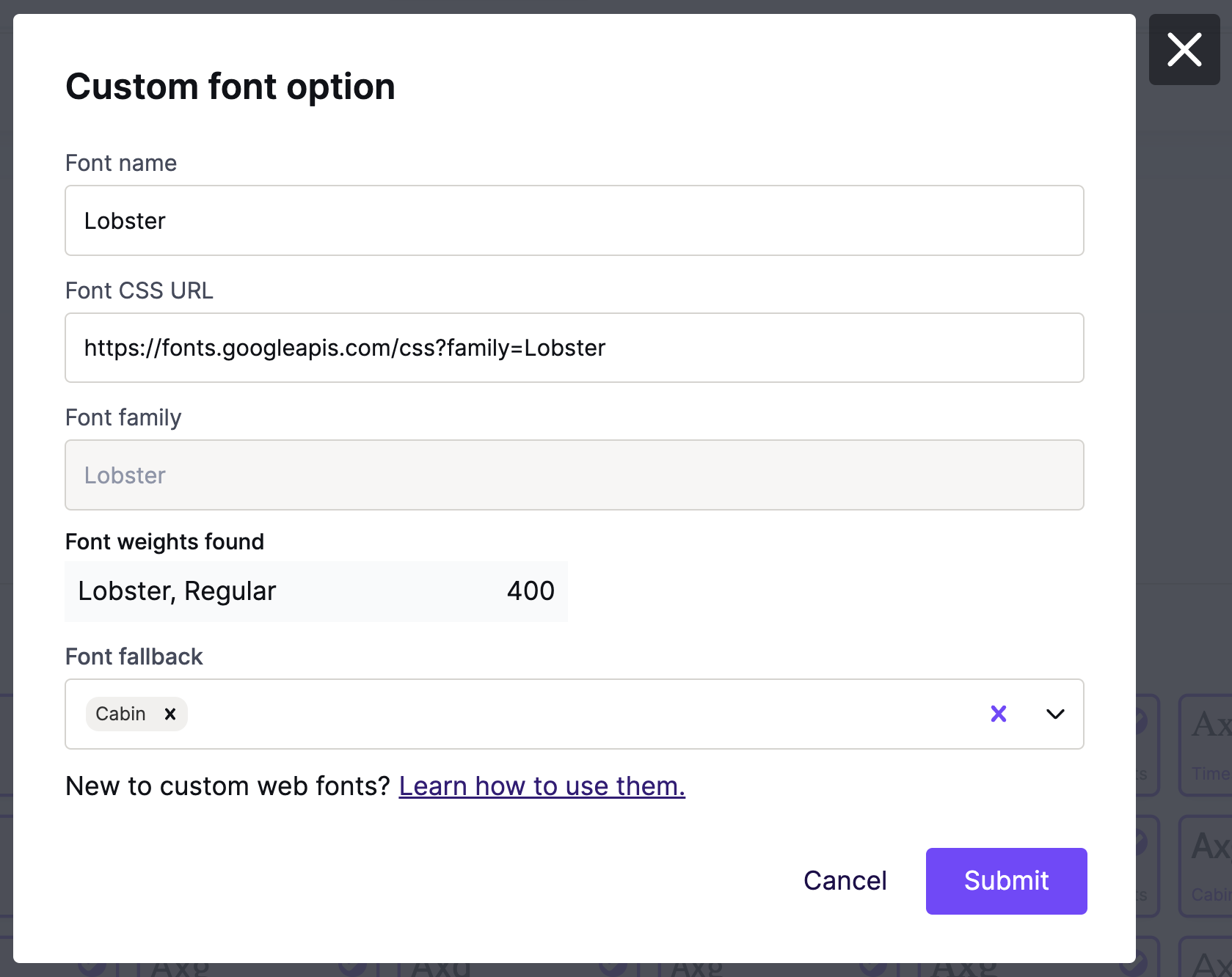
Once you click Submit, the new custom font will be added at the bottom in the Custom fonts section. This section is always at the top of your font settings. The preview also includes the number of weights included for your custom fonts.
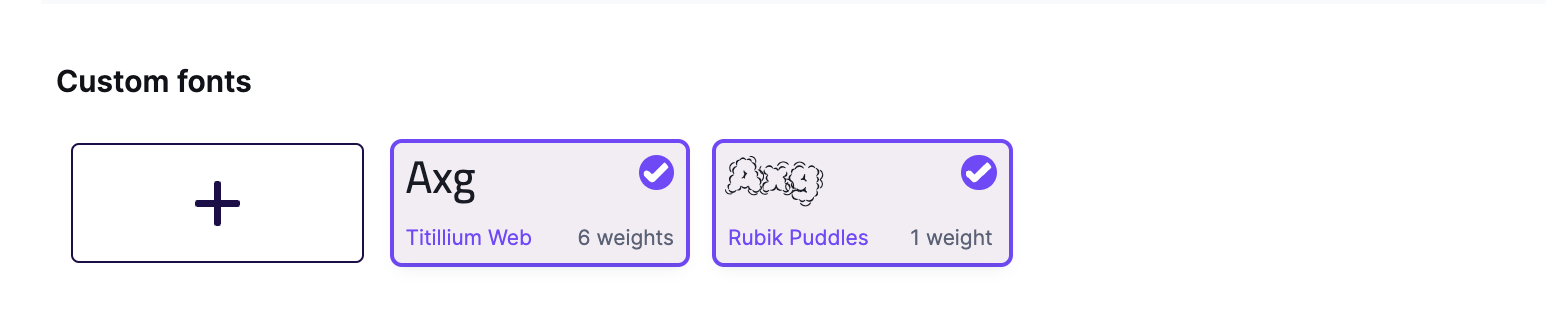
You can now use your custom font in the builder from anywhere within this workspace.
Modifying Custom Fonts
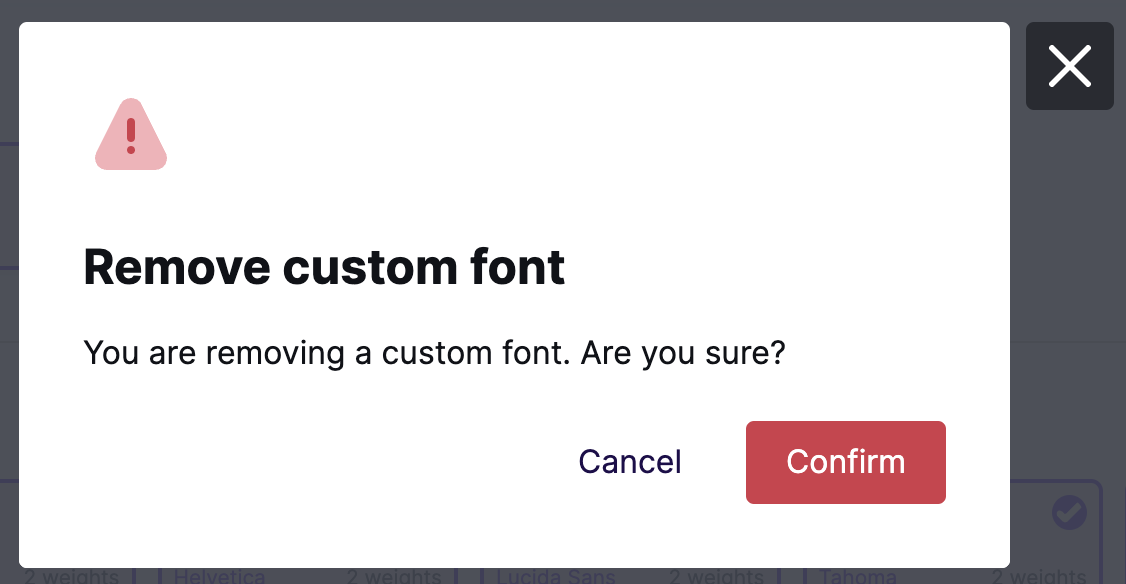
You cannot edit a custom font. If you want to edit the settings, we recommend you delete and re-import the font. You can view the existing settings for your font at any time by clicking on the font card within your settings. To delete an existing custom font move the mouse cursor over the ✔ mark. The icon will change to a 𝙓 indicating the delete action.

A confirmation message will display to reduce the chances of accidental deletion.
Using Google Fonts
Google Fonts provides a rich catalog of web fonts free of charge and ready to use. In order to use a Google Font in Tenon, start by copying just the HREF content from the widget. You can see an example of this below.
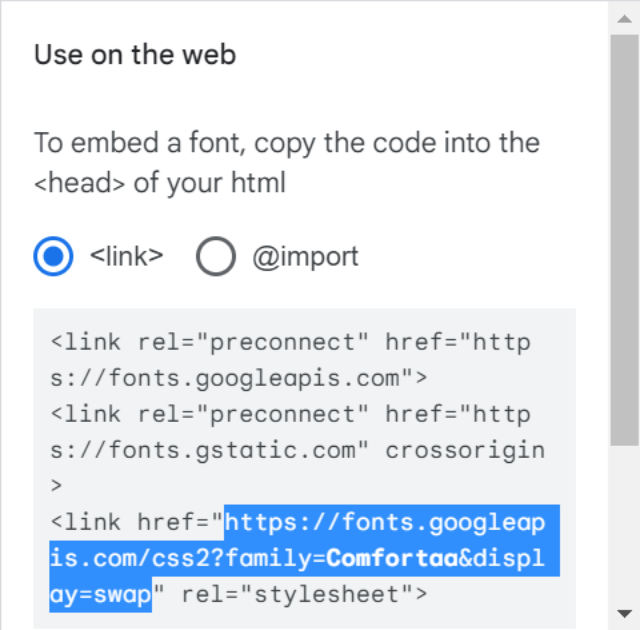
Simply copy and paste this into the CSS URL field for Tenon. The rest of the setup occurs directly in Tenon. You may want to refer to the Google Fonts recommended font stack to help build your own.
Using Adobe fonts
If you wish to use Adobe fonts inside Tenon, go to fonts.adobe.com (the old Typekit). On this website, you can find the font library and all the font selections.
Once you've located your preferred font, activate it.

Once enabled, click on the [</>] icon. Before you get the CSS URL, Adobe will ask you to assign the font to a Web Project. Once you select or create the Adobe Web Project, click Create or Save to get the CSS URL. You should see something like this:

Simply copy and paste this into the CSS URL field for Tenon. The rest of the setup occurs directly in Tenon. You may want to refer to the Adobe Fonts recommended font stack to help build your own.
Important Note
Please note that Tenon only supports standard font weights (100-950).
Default Fonts in Tenon
Here's a list of the default fonts that you have available in your Tenon account. This list also includes the corresponding font stacks we've built:
Font NameFont stackArialArial, 'Helvetica Neue', Helvetica, sans-serifCourier'Courier New', Courier, 'Lucida Sans Typewriter', 'Lucida Typewriter', monospaceGeorgiaGeorgia, Times, 'Times New Roman', serifHelvetica'Helvetica Neue', Helvetica, Arial, sans-serifLucida Sans'Lucida Sans Unicode', 'Lucida Grande', 'Lucida Sans', Geneva, Verdana, sans-serifTahomaTahoma, Verdana, Segoe, sans-serifTimes New RomanTimesNewRoman, 'Times New Roman', Times, Beskerville, Georgia, serifTrebuchet MS'Trebuchet MS', 'Lucida Grande', 'Lucida Sans Unicode', 'Lucida Sans', Tahoma, sans-serifVerdanaVerdana, Geneva, sans-serifヒラギノ角ゴ Pro W3ヒラギノ角ゴ Pro W3, Hiragino Kaku Gothic Pro,Osaka, メイリオ, Meiryo, MS Pゴシック, MS PGothic, sans-serifメイリオメイリオ, Meiryo, MS Pゴシック, MS PGothic, ヒラギノ角ゴ Pro W3, Hiragino Kaku Gothic Pro,Osaka, sans-serifAbril Fatface'Abril Fatface', Arial, 'Helvetica Neue', Helvetica, sans-serifBitter'Bitter', Georgia, Times, 'Times New Roman', serifCabin'Cabin', Arial, 'Helvetica Neue', Helvetica, sans-serifDroid Serif'Droid Serif', Georgia, Times, 'Times New Roman', serifLato'Lato', Tahoma, Verdana, Segoe, sans-serifOpen Sans'Open Sans', 'Helvetica Neue', Helvetica, Arial, sans-serifRoboto'Roboto', Tahoma, Verdana, Segoe, sans-serifSource Sans Pro'Source Sans Pro', Tahoma, Verdana, Segoe, sans-serifMerriweather'Merriweather', 'Georgia', serifMontserrat'Montserrat', 'Trebuchet MS', 'Lucida Grande', 'Lucida Sans Unicode', 'Lucida Sans', Tahoma, sans-serifNunito'Nunito', Arial, 'Helvetica Neue', Helvetica, sans-serifOswald'Oswald', Arial, 'Helvetica Neue', Helvetica, sans-serifOxygen'Oxygen', 'Trebuchet MS', 'Lucida Grande', 'Lucida Sans Unicode', 'Lucida Sans', Tahoma, sans-serifPermanent Marker'Permanent Marker', Impact, Charcoal, sans-serifRoboto Slab'Roboto Slab', Arial, 'Helvetica Neue', Helvetica, sans-serifUbuntu'Ubuntu', Tahoma, Verdana, Segoe, sans-serifAlegreya'Alegreya', 'Trebuchet MS', Helvetica, sans-serifArvo'Arvo', 'Courier New', Courier, monospaceCatamaran'Catamaran', 'Lucida Sans Unicode', 'Lucida Grande', sans-serifChivo'Chivo', Arial, Helvetica, sans-serifCormorant Garamond'Cormorant Garamond', 'Times New Roman', Times, serifDosis'Dosis', Arial, Helvetica, sans-serifFira Sans'Fira Sans', 'Lucida Sans Unicode', 'Lucida Grande', sans-serifLora'Lora', Georgia, serifMonda'Monda', 'Courier New', Courier, monospaceNoto Sans'Noto Sans', 'Trebuchet MS', Helvetica, sans-serifNoto Serif'Noto Serif', Georgia, serifPlayfair Display'Playfair Display', Georgia, serifPoppins'Poppins', Arial, Helvetica, sans-serifQuattrocento'Quattrocento', 'Trebuchet MS', Helvetica, sans-serifQuattrocento Sans'Quattrocento Sans', Georgia, serifQuestrial'Questrial', 'Trebuchet MS', Helvetica, sans-serifRaleway'Raleway', 'Trebuchet MS', Helvetica, sans-serifRubik'Rubik', 'Trebuchet MS', Helvetica, sans-serifRuda'Ruda', 'Courier New', Courier, monospaceShrikhand'Shrikhand', Impact, Charcoal, sans-serifSintony'Sintony', 'Courier New', Courier, monospaceVarela Round'Varela Round', 'Trebuchet MS', Helvetica, sans-serifWork Sans'Work Sans', 'Trebuchet MS', Helvetica, sans-serif