
Paragraph block
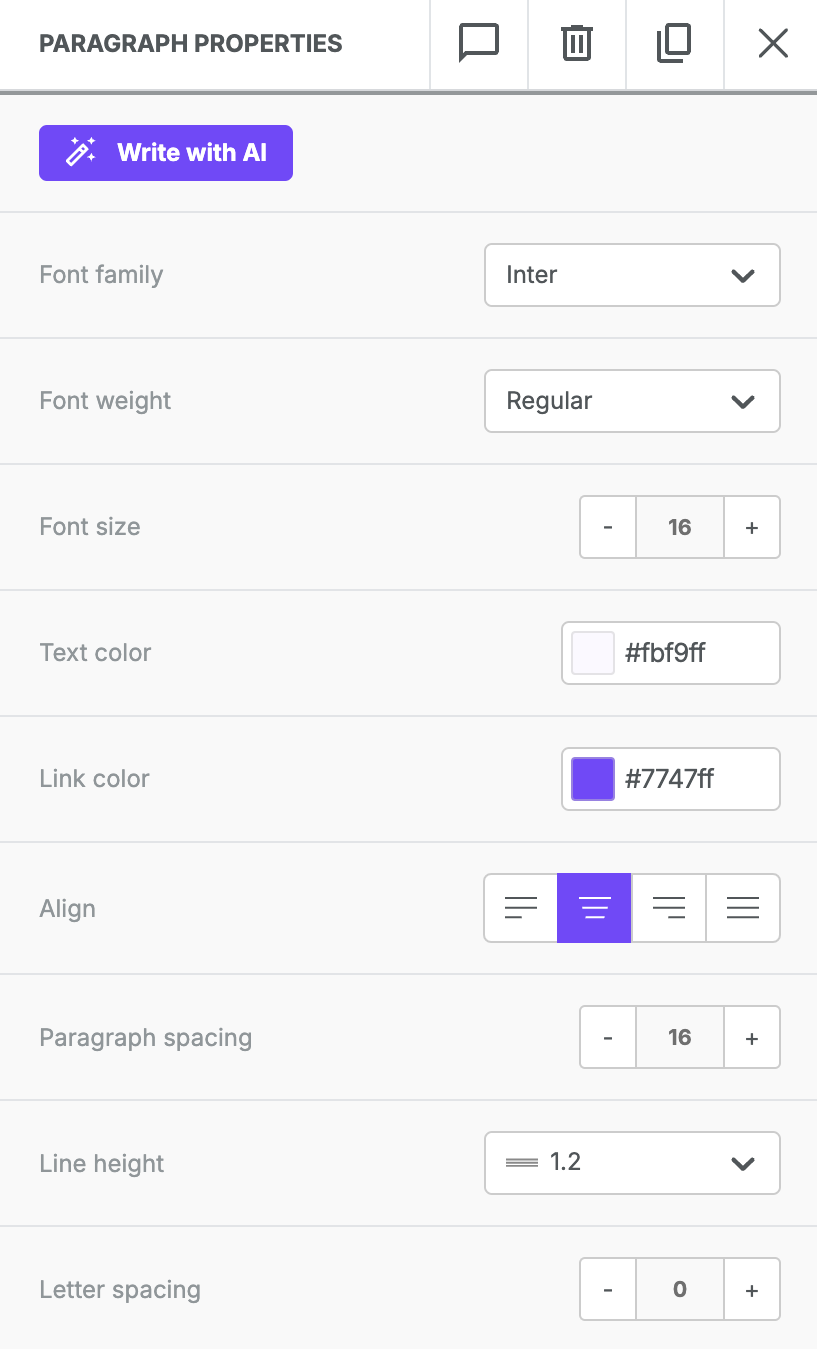
Some of the available features are:
- Font weight, which allows you to select between the regular or bolded variations of your font. This option is available for all fonts pre-loaded in Tenon. If you're using custom fonts, you'll need to use a stylesheet that includes a bolded version of your font. For more details, see Using custom fonts in Tenon.
- Paragraph spacing, which provides granular control over the carriage return/line break spacing. This option allows you to increase/reduce the space between your paragraphs.
Some settings moved from the text toolbar to the content properties sidebar, including:
- Font family
- Font size
- Alignment
- Text direction
As a result, the text toolbar is a bit smaller too.
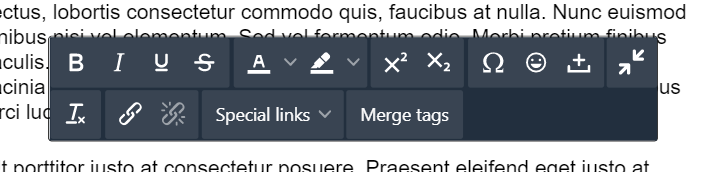
The only addition to the text toolbar is the icon to the right of the emoticons option. You can use this button to insert non-breaking spaces with the click of a button.
AI Assistant (Beta)
You can use our AI assistant to help with content creation. To get started, locate the Write with AI button in the sidebar. This beta feature is currently available for Paragraph, Title, List, and Button blocks.
List block
The list content block includes all the new features seen in the paragraph content block. However, you'll find some content properties specific to list content.
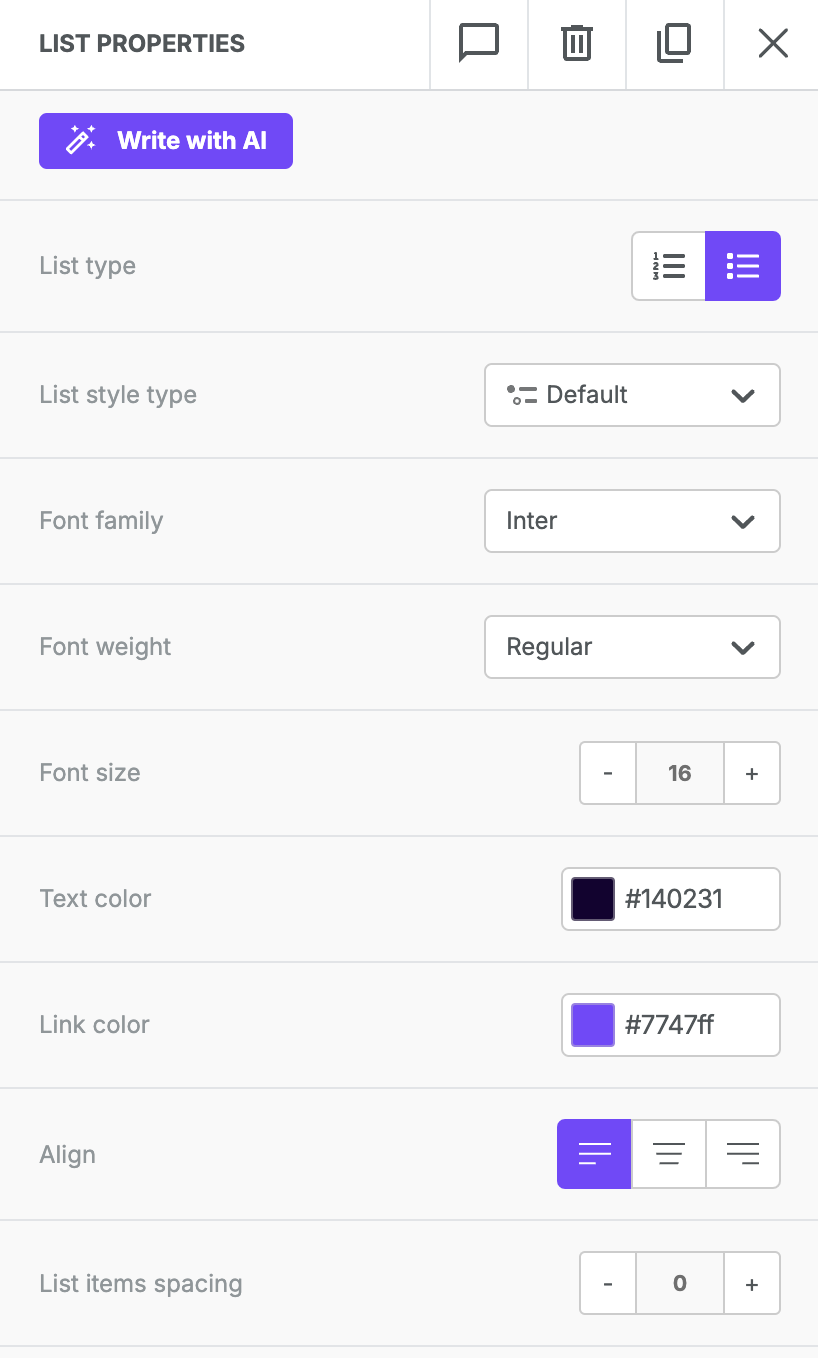
The options specific to the list content block are as follows:
- List type, which allows you to choose an ordered or unordered list.
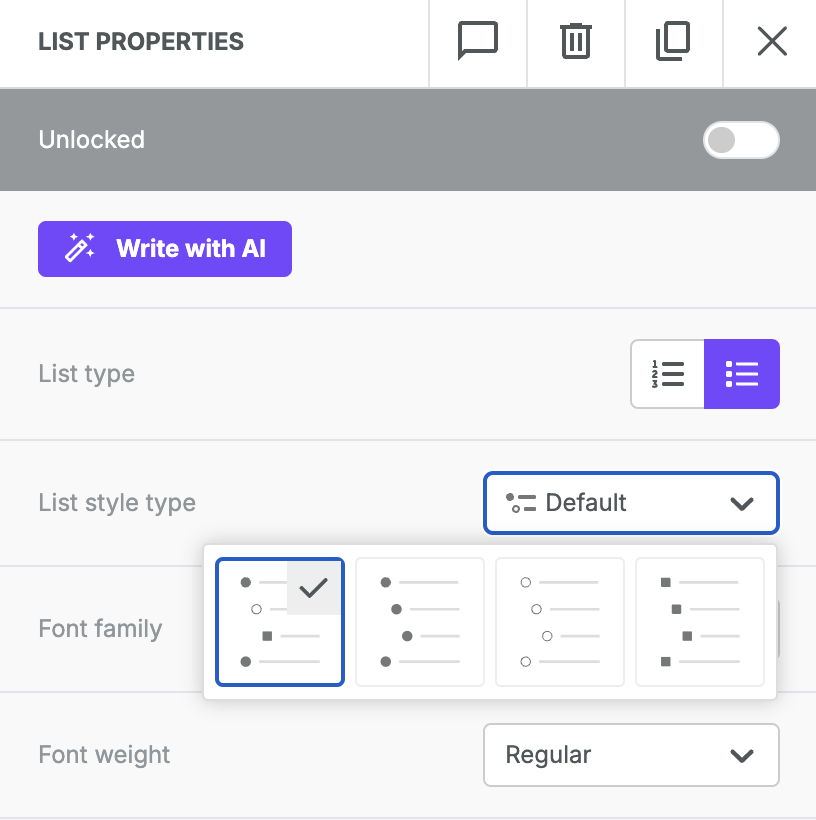
- List style type, which enables you to select some basic styling options for your list.
- Start list from, which is a conditional option that populates when you choose an ordered list. Use this if you're creating an ordered list across multiple content blocks.
- List items spacing, which allows granular control over the spacing between list items.
- List items indent, which allows granular control over the indent on list subitems.
Note on existing text content blocks
Many Tenon templates still include the original text content block. If you've used Tenon for some time, you likely have custom templates that use the text content block as well. In other cases, you may have saved rows that include this type of content.
Existing text content blocks will populate with the original formatting options. As a result, any of your templates or saved rows that include it will not update automatically. You'll see the original behavior in the toolbar and sidebar with the old content block.
You can continue to use the text block in any design where it already exists. Alternatively, you can use saved rows to continue designing with it. However, the text content block will no longer be available from the Content tab. To create text content from scratch, please use the new Paragraph and List blocks.