
Tenon traditionally uses a set color scheme for any button when you drag a new button content block to the stage. Now you can customize this button! With button styles, you can drag and drop a button that matches your brand at any time.
By default, your button will populate with Tenon colors. A preview of the button is also available. This changes in real-time as you make adjustments to the button values.
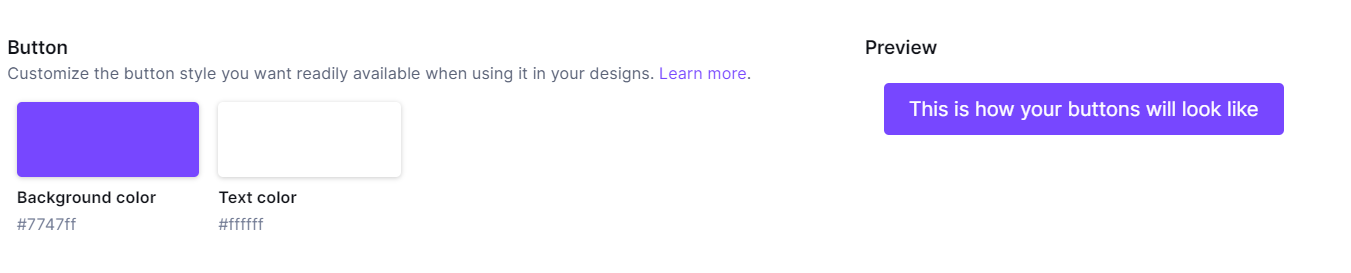
You can change the background color and text color. To change the colors for your buttons, click on the color icon to the left of the hex code value. This will open the color picker, where you can select Save to confirm the change.
If your button background is white (#FFFFFF), the preview will populate over a dark background.

The button preview will reflect the button font you set above in the typography section.