
Overview
When you mouse over a block of content, Tenon shows you an icon that allows you to drag that block of content elsewhere.
Once you click on a block of content, Tenon will:

- Show you three icons on the stage, which allow you to remove, clone or comment on that block of content.
- On the right side of the builder, you will see a series of properties that you can edit for that block of content.
Likewise, when you mouse over an area that is free of content, such as the row in which the content is located, Tenon will highlight it and show you an icon that allows you to drag it elsewhere.
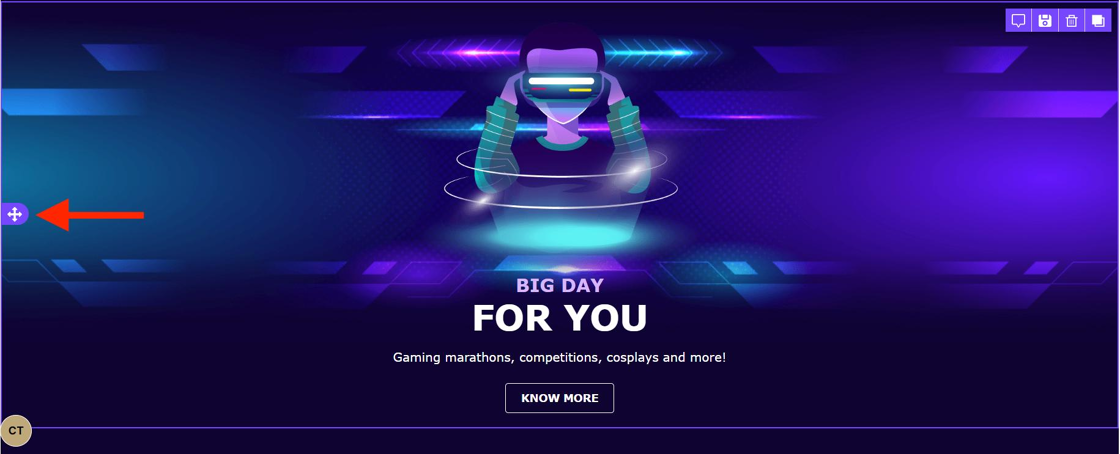
When you click on a row, Tenon will:
- Deselect any block of content that had been previously selected.
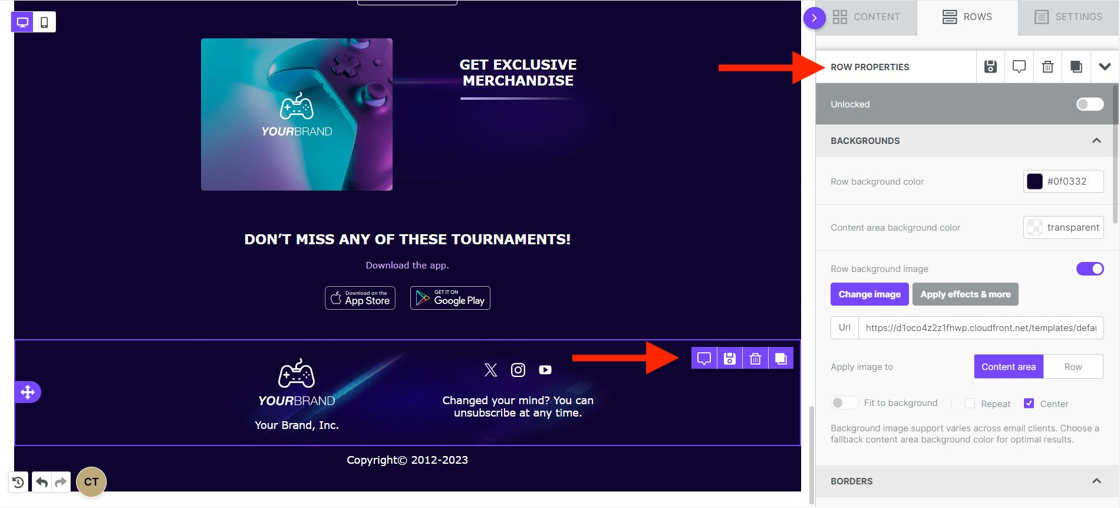
- Select the row, and show you four icons that allow you to comment, save, remove, or clone the entire row and all its content.
- On the right side of the builder, you will see a series of properties that you can edit for that row.
Keep in mind that a row can contain more than one column.
Thank you! Your submission has been received!
Oops! Something went wrong while submitting the form.