
Overview
This guide provides resources that highlight how to add a root domain or subdomain to GoDaddy and configure the (sub)domain with each Tenon DNS record. This guide assumes that you have already created your GoDaddy account.
While this guide is intended to be as helpful and comprehensive as possible, there is a small possibility that you will encounter an error or issue of some kind while configuring your DNS records within GoDaddy. If that is the case, we recommend contacting GoDaddy's Support Team as they will be able to most quickly identify and resolve the issue (or, at minimum, provide next steps).
Deciding Between a Root Domain and a Sub Domain
Deciding which domain to use - especially whether to use your root domain or a subdomain of that root domain - is key before proceeding any further. As this can be a challenging decision to make, we recommend reviewing the following informational articles if needed:
- Choosing a domain name
- The basics of email subdomains
- Can I use the same domain name for Tenon and my personal email account?
Nevertheless, let's briefly review two key terms: root domains and subdomains.
Examples of root domains include Service-Now.com, mydnsexample.com, or google.com. Examples of subdomains include Tenon.Service-Now.com, mg.mydnsexample.com, or mail.google.com. Notice the pattern: subdomains have an extra prefix (or sometimes multiple prefixes) before the primary domain name itself. In most cases using a subdomain with Tenon is preferred, but we cover this topic more comprehensively in the above articles.
Finally, once a decision has been reached, add the (sub)domain to your Tenon account, and our system will generate the various DNS records needed.
Adding the domain
There are three methods of adding a domain or subdomain within GoDaddy:
Method 1: Registering a new domain/subdomain with GoDaddy
Method 2: Transferring an existing (sub)domain from another DNS provider to GoDaddy
Method 3: Configuring an existing (sub)domain's nameservers within the Domain Registrar to reference GoDaddy rather than the current DNS provider
The first method of adding a (sub)domain within the GoDaddy Control Panel only takes 7 steps, and this method is covered in this article. We will list those steps below, but if desired, you can also reference GoDaddy's Adding (Buying) A Domain articles. If you already have a domain purchased and registered elsewhere, you'll need to transfer the domain to GoDaddy (see the next paragraph) or configure your nameserver records to reference GoDaddy (see the paragraph after the next paragraph).
The second method of adding a (sub)domain within the GoDaddy Control Panel is not covered in this article; nonetheless, GoDaddy documents how the transfer process works within their system. .
A third method, configuring an existing (sub)domain's nameservers within the Domain Registrar to reference GoDaddy rather than the current DNS provider, is partially covered in this article. Similar to the explanation in the second method above, changes in your Domain Registrar must be carefully and precisely made. As such, working directly with the Domain Registrar may be imperative for ensuring the nameserver (NS) records are updated appropriately. Nonetheless, we cover the GoDaddy side of the equation below.
Method 1: Registering for a new Domain / SubDomain with GoDaddy
Step 1: Login to your GoDaddy Account
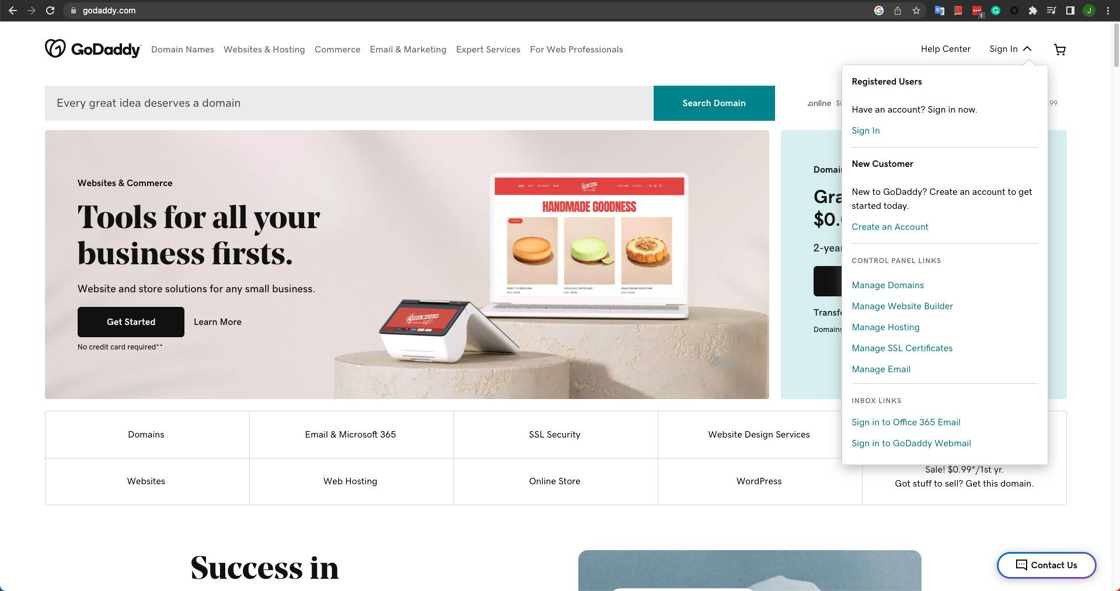
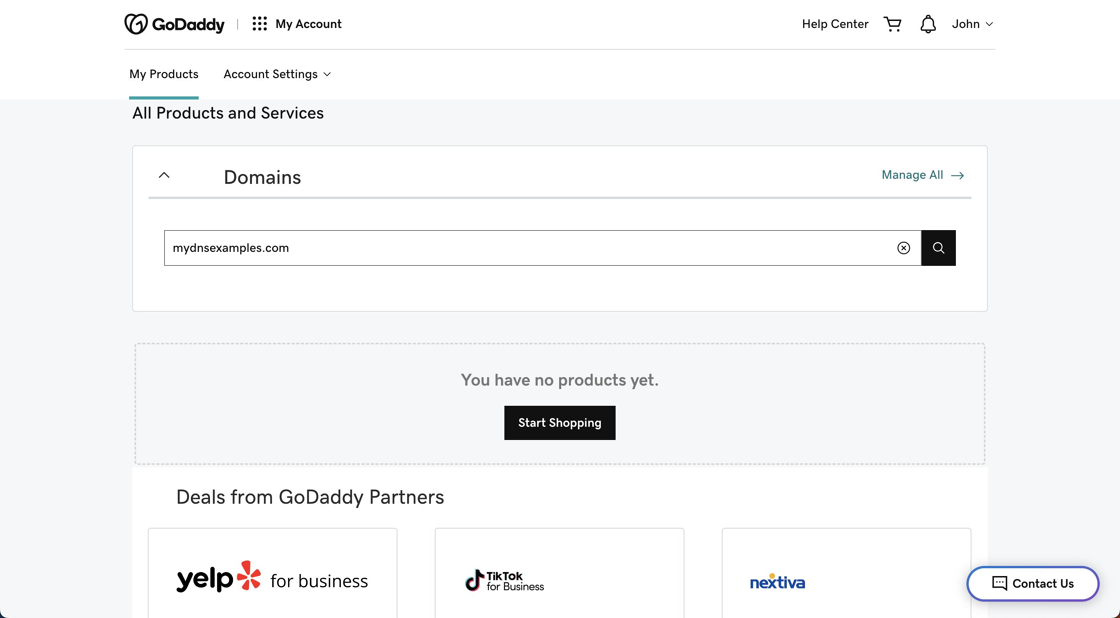
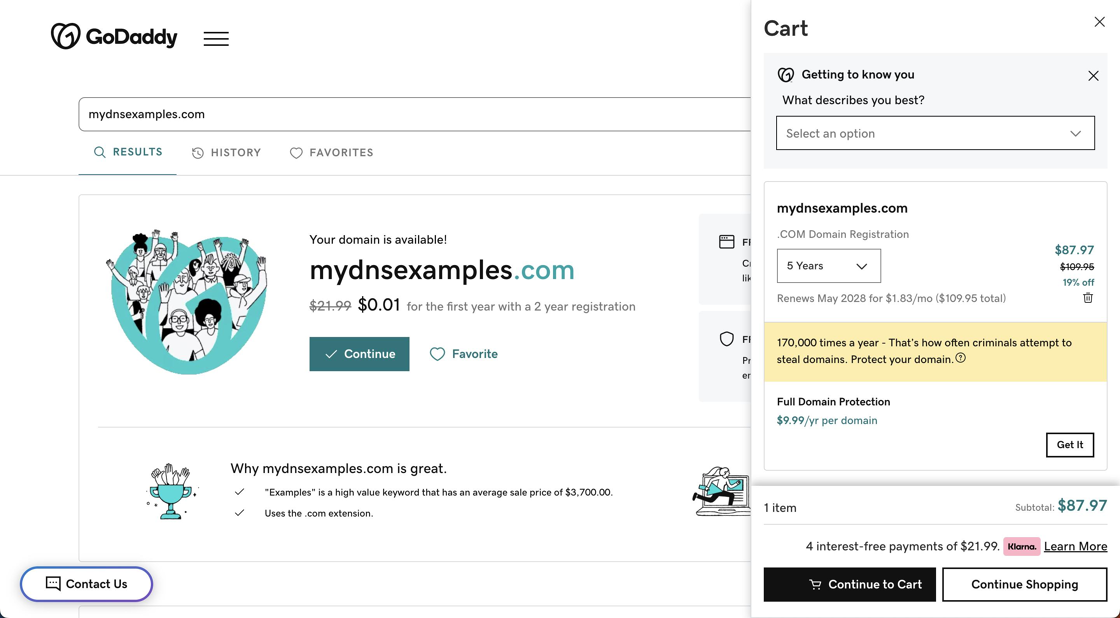
Step 2: Enter the new domain name you wish to add (buy/purchase) from GoDaddy inside the center textbox.
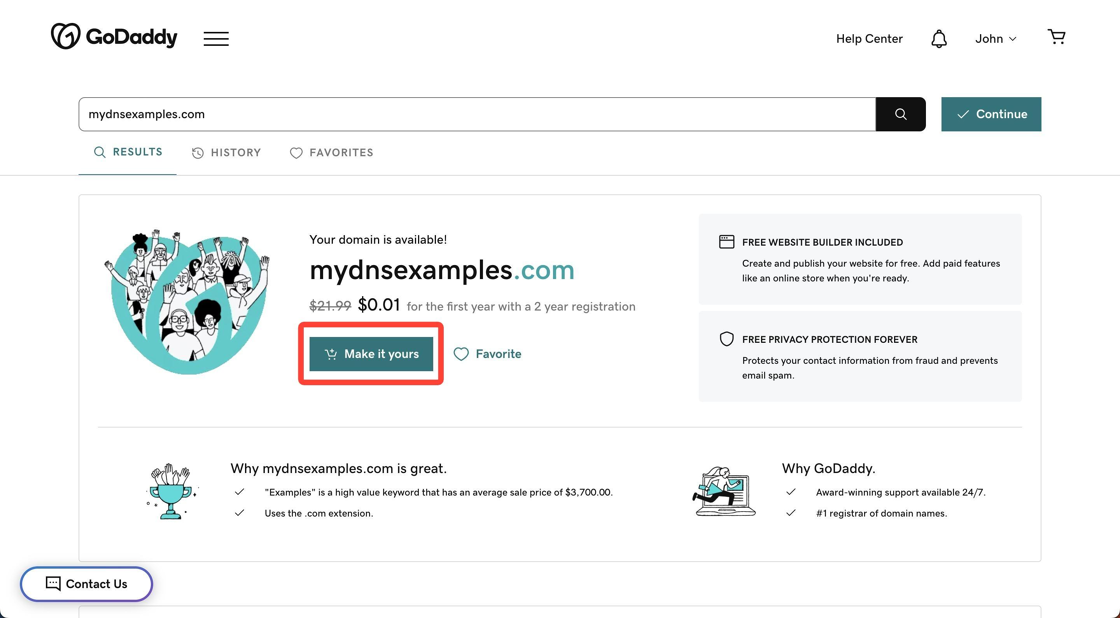
Step 3: Choose the desired domain ending (.TLD) for your domain. Then, click the Make it yours button
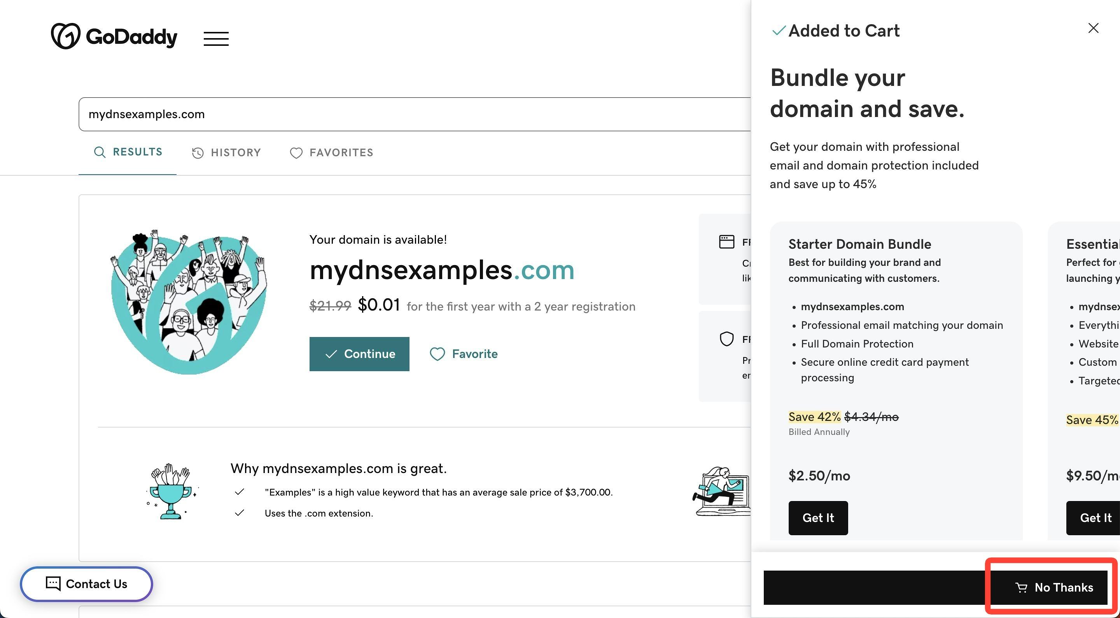
Step 4: If shown, choose any additional options and proceed to the next page by clicking the No Thanks button.
Step 5: Click the shopping cart icon (located towards the top-right corner of the page).
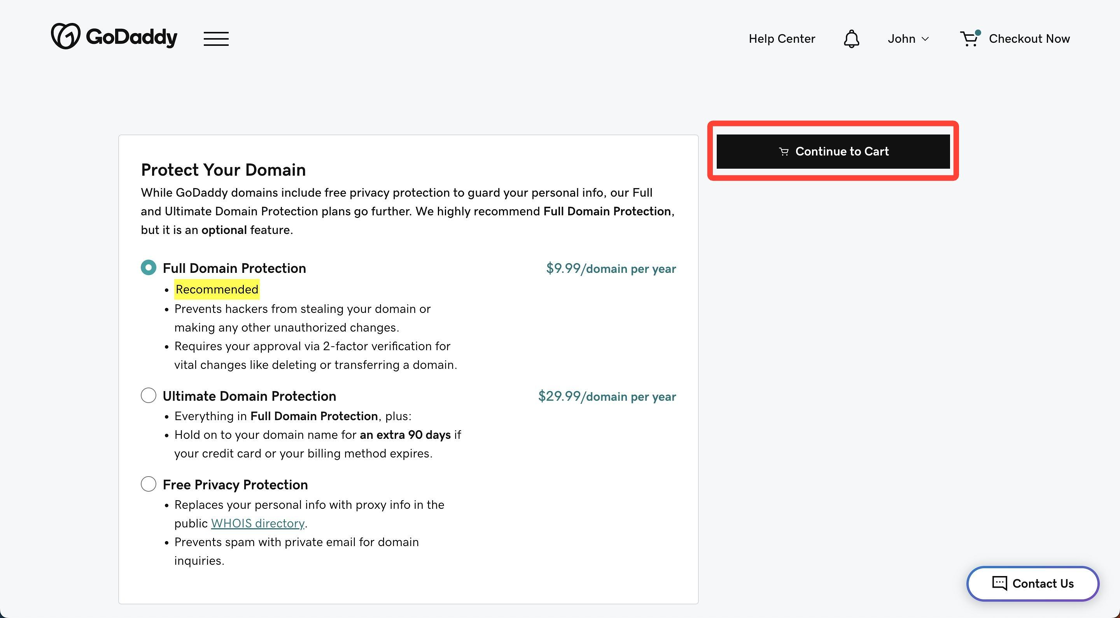
Step 6: If shown, choose any additional options and proceed to the next page by clicking the Continue to Cart button.
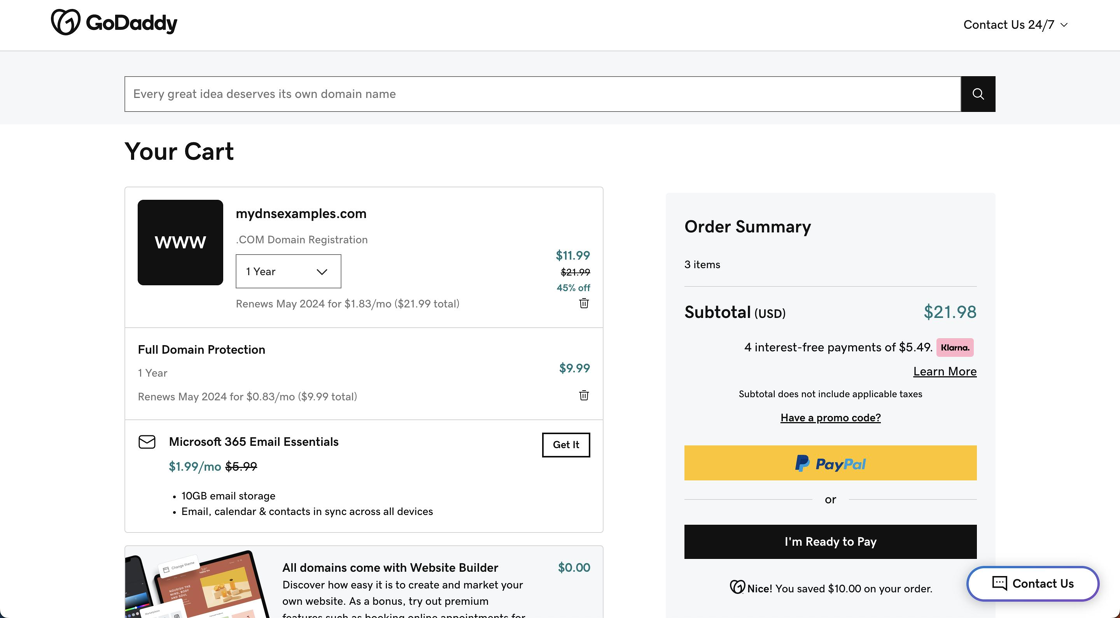
Step 7: Finalize any details or options, provide payment, and complete the domain registration process.
Method 2: Transferring an existing (sub)domain from another DNS provider to GoDaddy
Since transferring an existing (sub)domain from another DNS provider to GoDaddy is such an intricate and delicate process, we recommend following the instructions that GoDaddy has laid out here.
We also recommend contacting the Domain Registrar if you have any questions or encounter any issues regarding with the Domain Registration and Nameserver Management processes.
Finally, you can navigate to either of the following GoDaddy articles, which will provide additional information:
2.) Registration Documentation
Method 3: Configuring an existing (sub)domain's nameservers within the Domain Registrar to reference GoDaddy rather than the current DNS provider
Step 1: Login to your GoDaddy Account
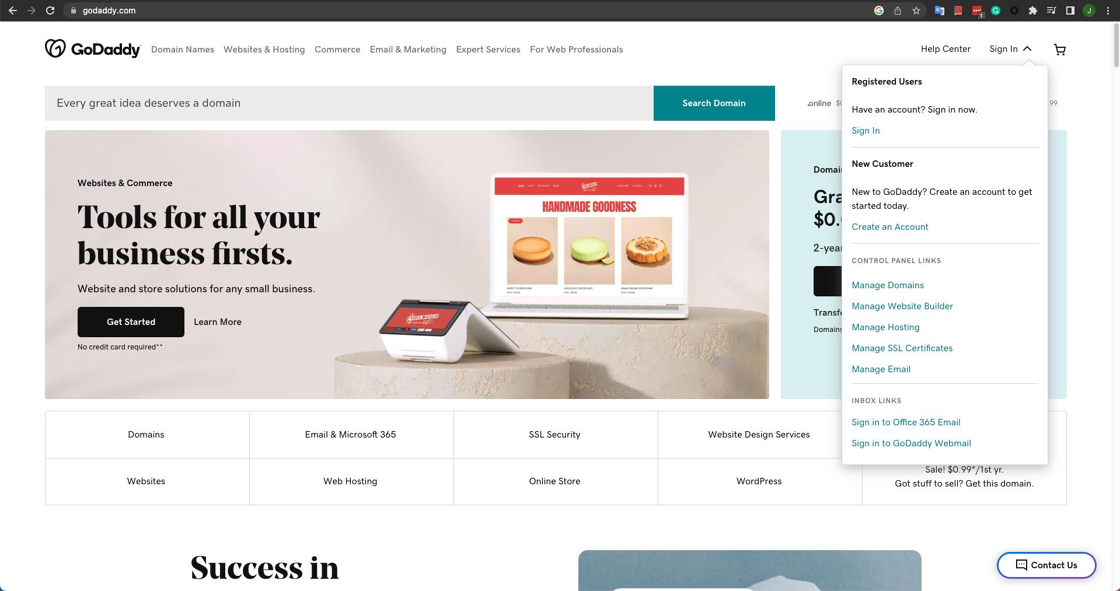
Step 2: Click the waffle menu (the icon with 9 dots to the right of the GoDaddy logo) and select the Domains option.
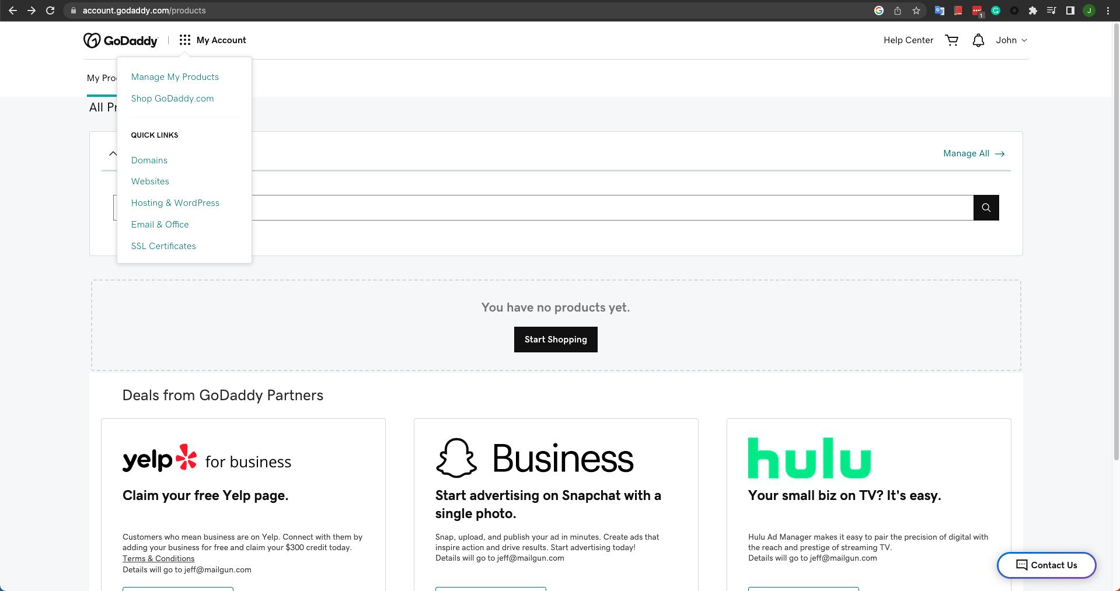
Step 3: Click the DNS tab towards the top of the page and select the Add DNS Hosting option.
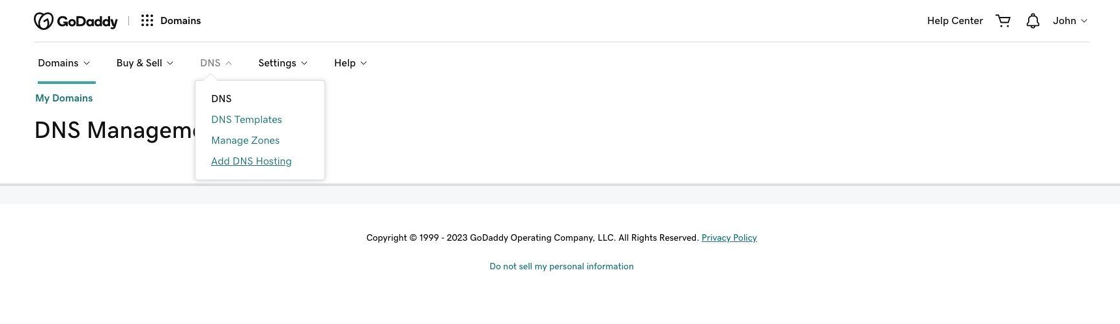
Step 4: Click the Add DNS Hosting button.
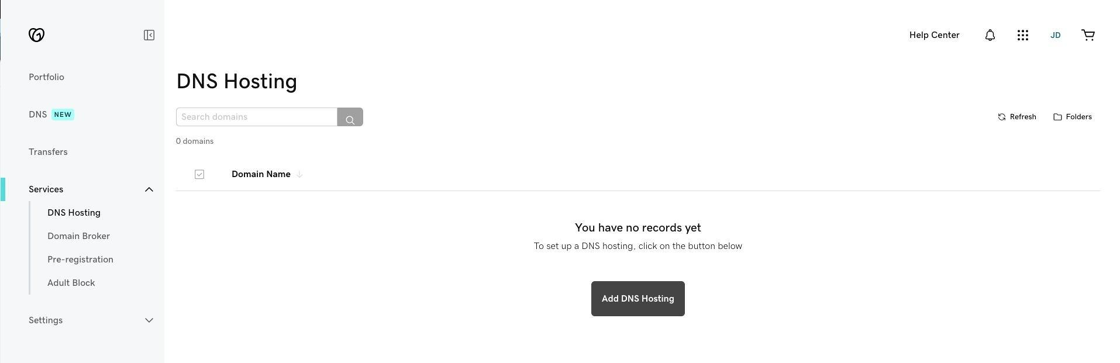
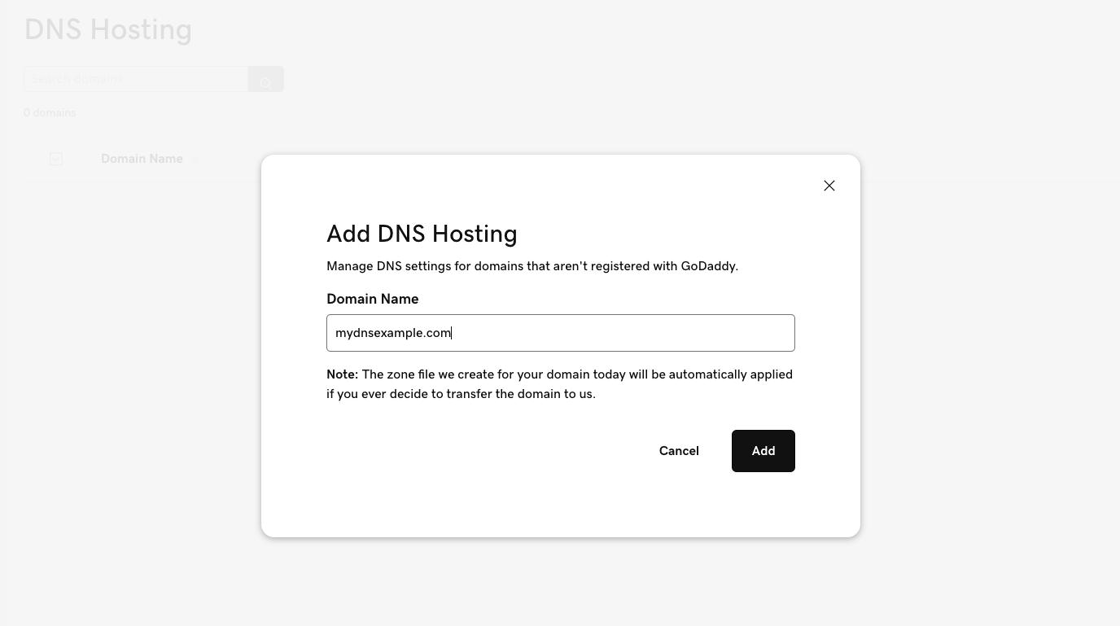
Step 5: Enter your existing (sub)domain in the textbox. Then, click the Add button.
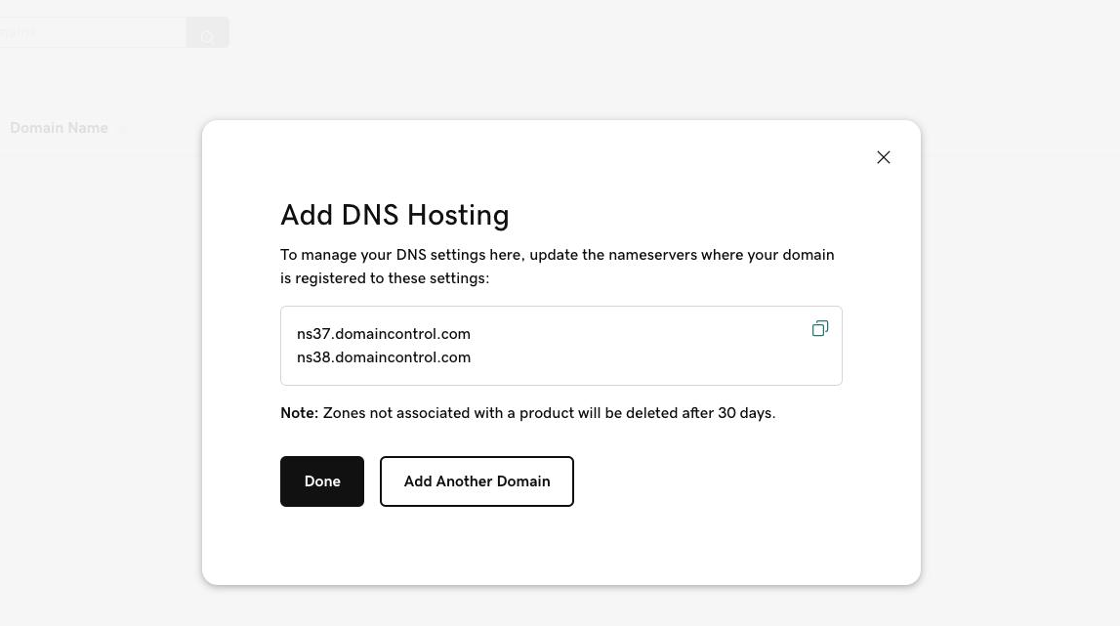
Step 6: GoDaddy displays the specific NS records you'll need to use within your Domain Registrar. You can skip this for the moment and proceed with configuring the Tenon DNS records within GoDaddy (please save these records for later in your notes), but you will need to ensure the GoDaddy NS records are configured within your Domain Registrar before the Tenon DNS records will propagate globally and become effective for your domain.
When ready to proceed, click the Done button.
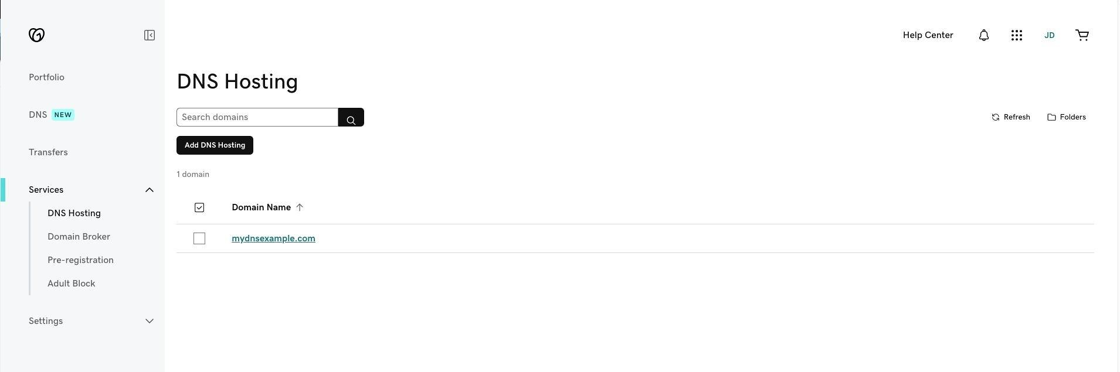
Step 7: Click the newly added domain.
Step 8: Enter the Tenon DNS records for each Tenon record by utilizing the relevant sections of this article below.
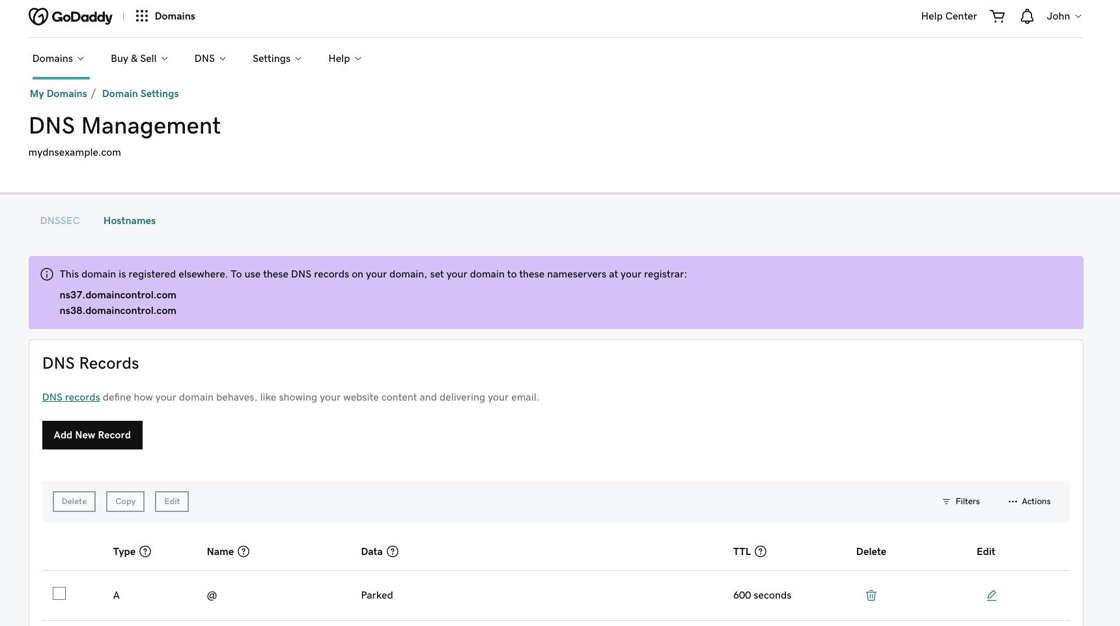
Configuring The Domain
Tip: Once the domain has been added, you may access it in the future using the following steps.
Step 1: If you're shown the My Products page upon login, click the Manage All link towards the upper-right side of the page.
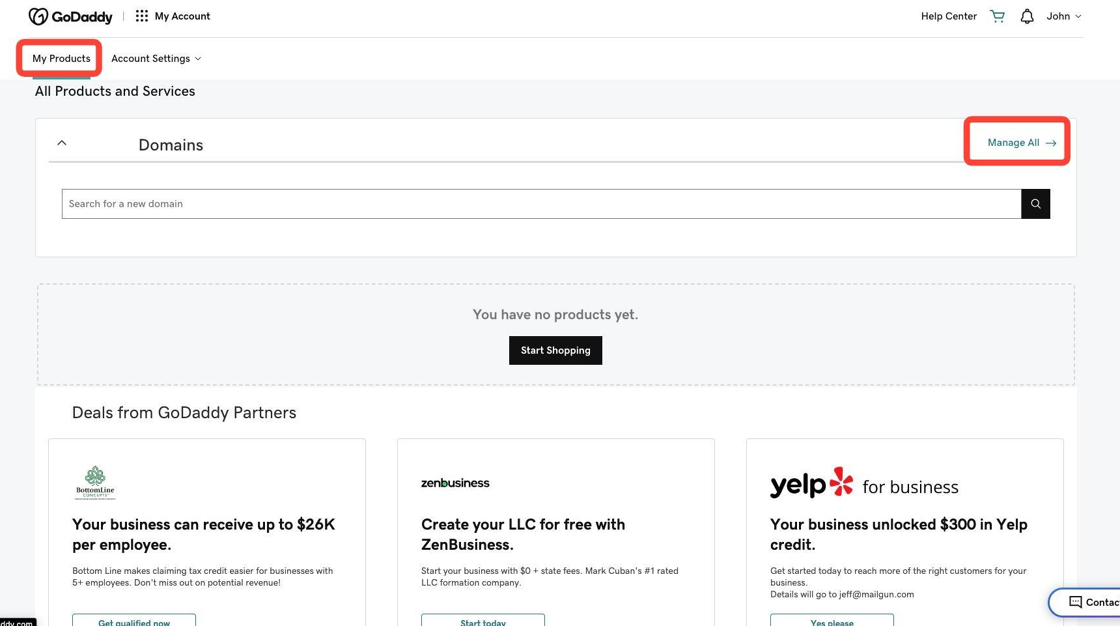
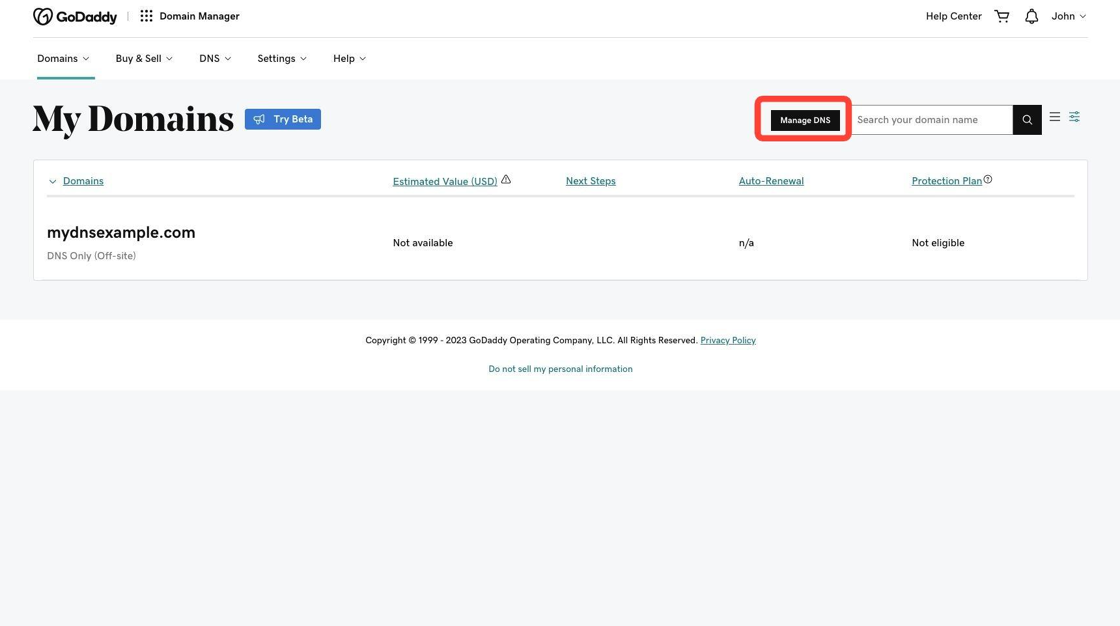
Step 2: Click the Manage DNS button towards the upper-right side of the page.
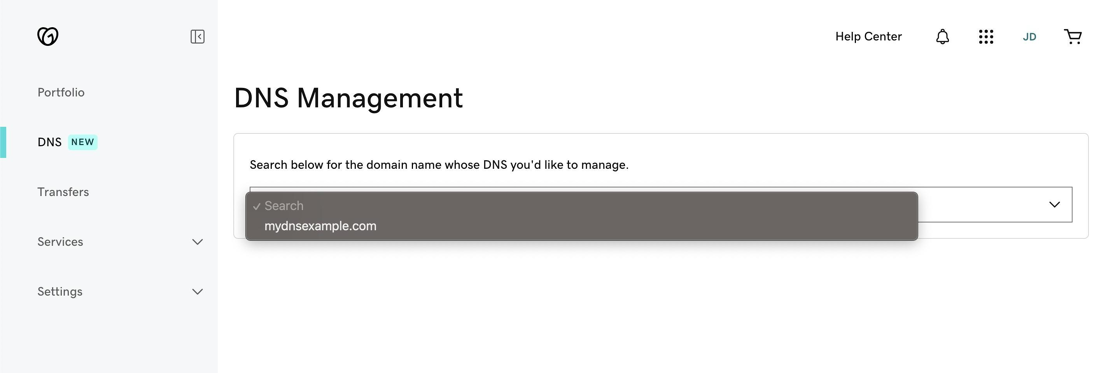
Step 3: Enter a domain name and then click the domain name to select it.
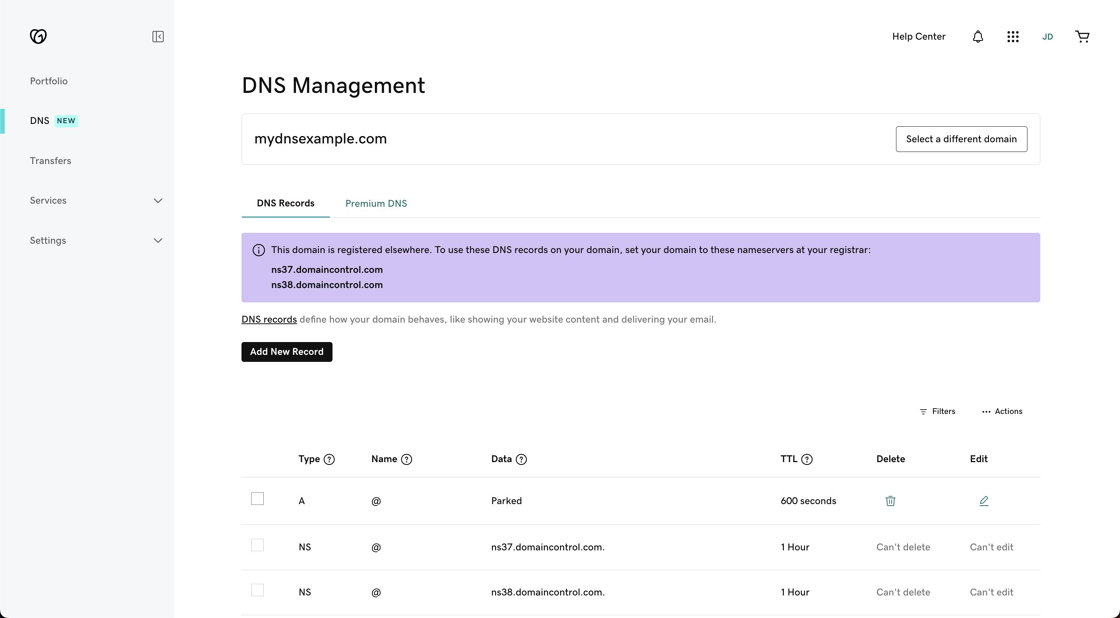
Step 4: View, create, or edit the desired DNS records for the domain.
Configuring SPF
SPF records help protect your domain against spoofed emails and decrease* the likelihood your emails will be flagged as spam. (* Exceptions apply: e.g. actual spam/phishing emails will still be considered as such by mailbox providers even with the presence of an SPF record.)
To understand how to configure SPF records, please reference one or both of the following GoDaddy Tutorials:
Configuring DKIM
DKIM records help authenticate your domain against forged emails and decrease* the likelihood your emails will be flagged as spam. (* Exceptions apply: e.g. actual spam/phishing emails will still be considered as such by mailbox providers even with the presence of an DKIM record.)
To understand how to configure DKIM records, please reference the following GoDaddy Tutorial:
Configuring MX
MX records describe where emails intended for your domain should be sent.
To understand how to configure MX records, please reference the following GoDaddy Tutorials:
Configuring CNAME
CNAME records alias (point or direct) one domain name to another domain name, which in this case effectively associates your emails with Tenon and allows tracking of opens and clicks.
To understand how to configure CNAME records, please reference the following GoDaddy Tutorial: